
Navigation › Inventory › Processing › Inventory Items
Buffer levels provide a visual cue of inventory item quantities in a specific warehouse. It allows the user to quickly see where stock levels need to be replenished. Correctly setting up the buffer levels for your inventory items also allows the Replenishment document to suggest replenishment quantities accurately.
To configure an inventory item's buffer levels, navigate to the relevant inventory item. Open it by double-clicking it in the list, or by selecting it and pressing Enter.
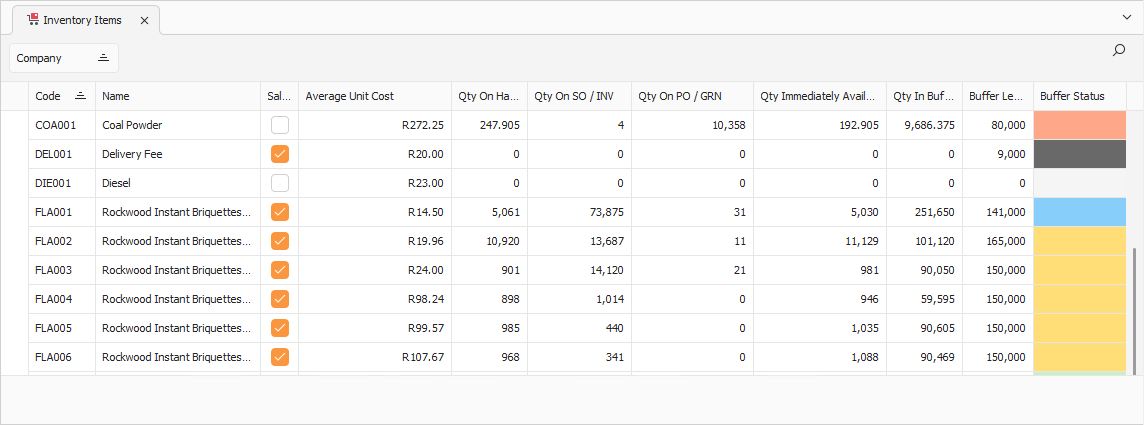
Opening the inventory item displays its Item tab. Click the Multi-Warehousing tab to continue.
Multi-Warehousing Tab
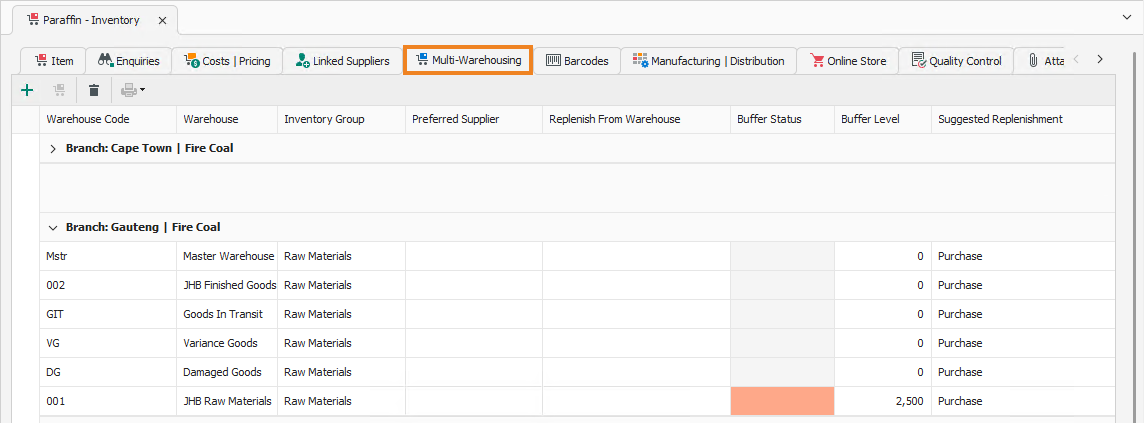
The Multi-Warehousing tab allows you to maintain warehouse-specific buffer levels for the inventory item.
Note: Buffer levels should only be configured for warehouses in which the inventory item is intended to be stocked.
Here you can set up buffer levels for this inventory item in any warehouse where it may be required.
- The Warehouse Code column displays each warehouse's unique warehouse code.
- The Warehouse column displays each warehouse's name.
- The Inventory Group column displays the inventory item's classification.
- If configured, the Preferred Supplier column displays the preferred supplier for the inventory item in that warehouse.
- If the inventory item is replenished from another warehouse, select that warehouse in the Replenish From Warehouse column.
- The Buffer Status column displays the current buffer status for the inventory item in each specific warehouse, where applicable.
- Enter the ideal amount of this inventory item you would like to keep in the warehouse in the Buffer Level column. This is the amount used to calculate the buffer status and determines the buffer status colour.
- Select the Suggested Replenishment type for the inventory item. The available options are:
- Purchase
- Manufacture
- Quick Assemble
- IBT
Repeat the above steps until all the buffer level settings are correct for the individual warehouses. Once done, click Save (Ctrl+S). This saves the buffer level settings.
Buffer Status Calculation
The buffer status column changes colour based on the current buffer quantity for each inventory item. The buffer status colours are defined as follows:
- Blue : Quantity exceeds the maximum buffer level.
- Green : Quantity is between 67% and 100% of the maximum buffer level.
- Amber : Quantity is between 33% and 67% of the maximum buffer level.
- Red : Quantity is above 0 but below 33% of the maximum buffer level.
- Black : Quantity is 0 (there is no stock).
- Grey/Blank : The buffer level is not configured.
The inventory item's buffer quantity is calculated by taking the current quantity on hand, and adding all the inventory items currently on credit notes, incoming quantity adjustments, goods received notes, purchase orders and WIP out instructions. These are all actions that increase the quantity on hand.
From this total quantity, the inventory items currently in delivery shipments, RTS's, outgoing quantity adjustments and invoices are deducted. The final quantity is the inventory item's buffer quantity.