
Set Up Credit Limits
Navigation › Customers › Processing › Customers
Note: This article focuses on setting up a customer's credit limits, as well as showcasing its effects in a sales order.
Customers are given credit limits on their respective profiles. The customer's credit limit is the sum of all outstanding sales orders and invoices on the system.
To configure a customer's credit limit, navigate to the relevant customer. Open it by double-clicking it in the list, or by selecting it and pressing Enter.
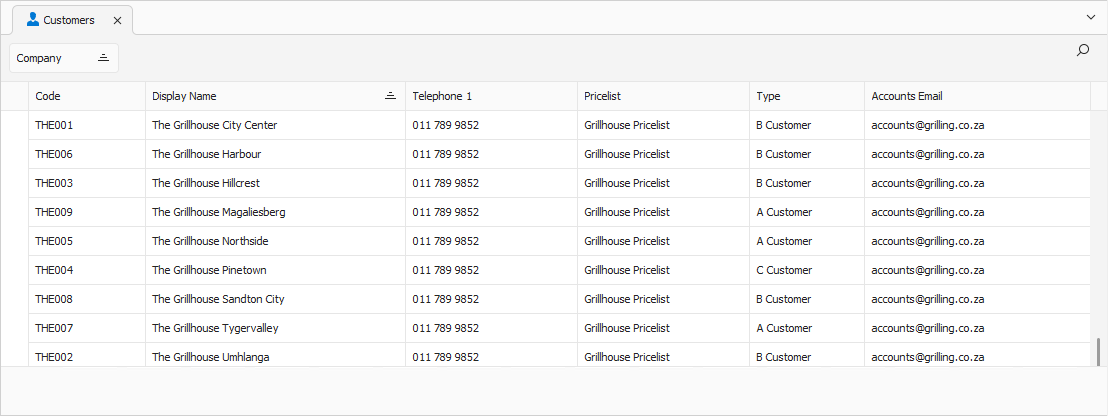
Opening the customer displays its General tab.
General Tab
The General tab displays the customer's general information, including credit information.
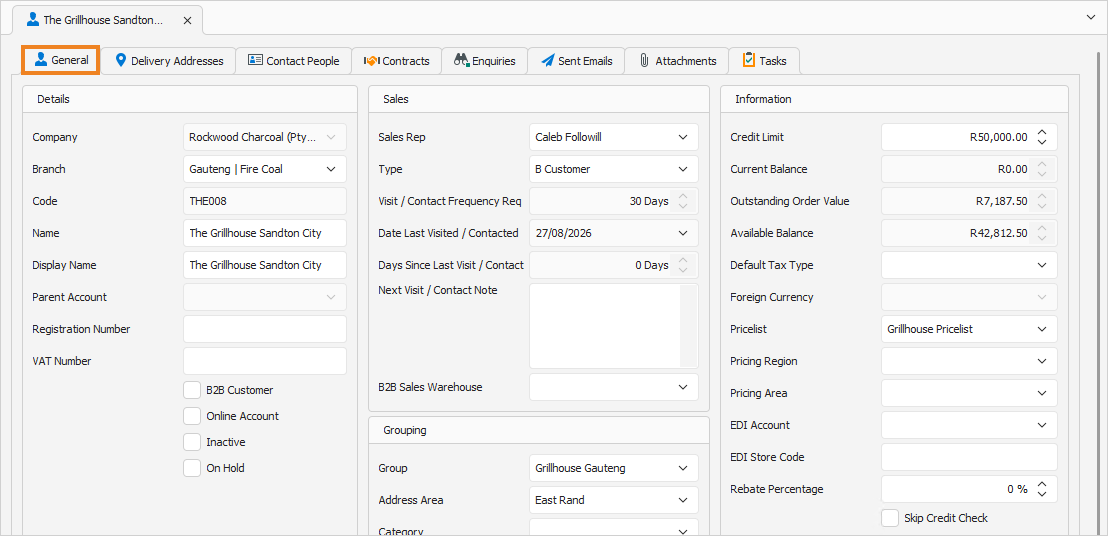
In the Information section, you can update the customer's credit information.
- Enter the customer's Credit Limit.
- The Current Balance displays the customer's outstanding invoice amount.
- The Outstanding Order Value displays the customer's outstanding sales order amount.
- The Available Balance is the amount of credit remaining after deducting the Current Balance and Outstanding Order Value from the customer's Credit Limit.
- At the bottom of the Information section, you can enable Skip Credit Check. When enabled, credit checks for this customer are skipped. This means the customer can place orders that exceed their credit limit without requiring approval.
Once done, click Save (Ctrl+S). This saves the customer. You can also press Ctrl+Enter to save and close the customer.
Credit Limits on Sales Orders
Navigation › Documents › Processing › Sales Orders
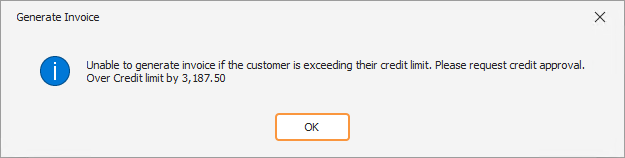
With the customer's credit limit in place, new sales orders can be invoiced up to the limit. Once a sales order exceeds the credit limit, credit approval is required before it can be invoiced. A popup informs you if the credit limit is exceeded and you need to request approval.
To request credit approval, the sales order must be in Draft status. Confirm the status on the General tab.
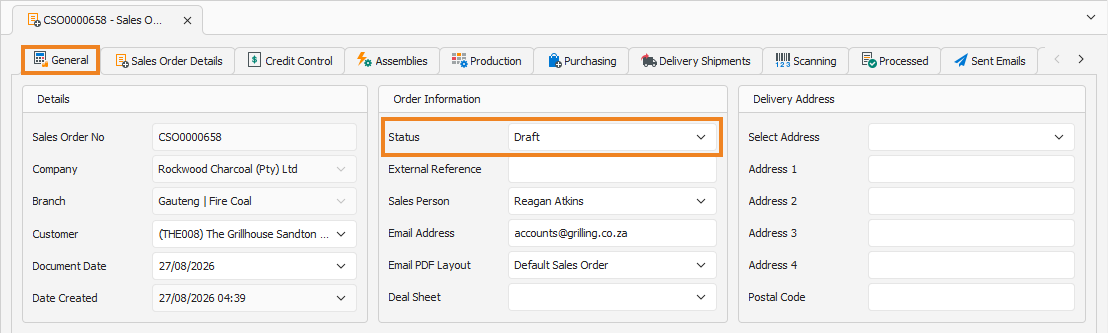
Once done, click the Credit Control tab to continue.
Credit Control Tab
The Credit Control tab allows you to perform a credit approval override.
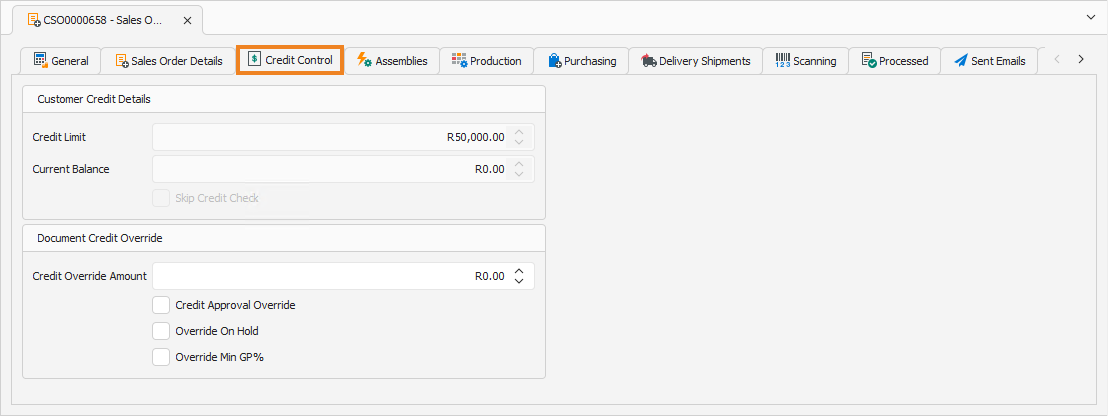
Enter the Credit Override Amount. This is the amount of additional credit you want to approve for the customer.
Check the Credit Approval Override checkbox to approve the additional credit for the customer.
Once done, click Save (Ctrl+S). This saves the sales order. With the additional credit approved, the sales order can be processed into an invoice. You can also press Ctrl+Enter to save and close the sales order.