
Navigation › Customers › Processing › Customers
When an employee is set as the default sales rep for a customer, sales created for that customer are assigned to that employee. Sales reps can be manually changed for sales.
Note: There are three ways to set a default a sales rep for a customer.
Default Sales Rep via General Settings
To set a customer's default sales rep via the general customer settings, navigate to the relevant customer. Open it by double-clicking it in the list, or by selecting it and pressing Enter.
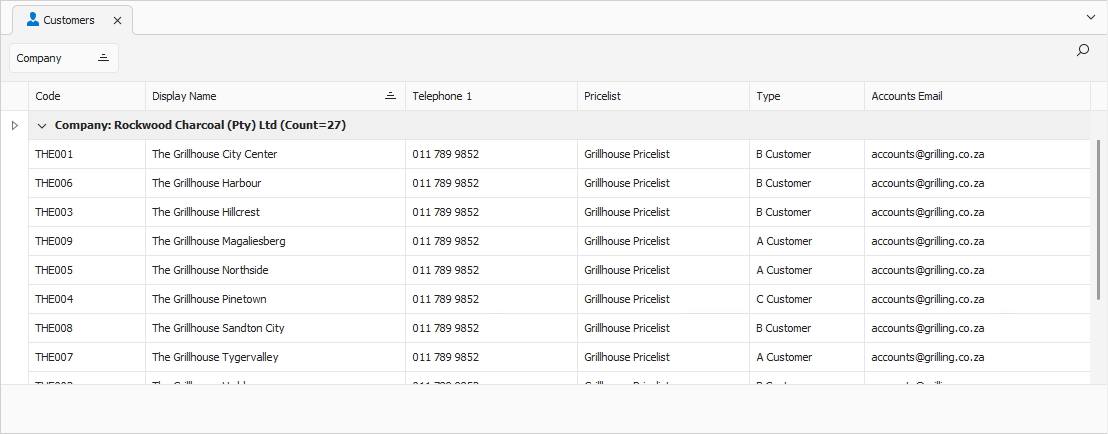
Opening the customer displays its General tab.
General Tab
In the Sales section, you can update the sales rep.
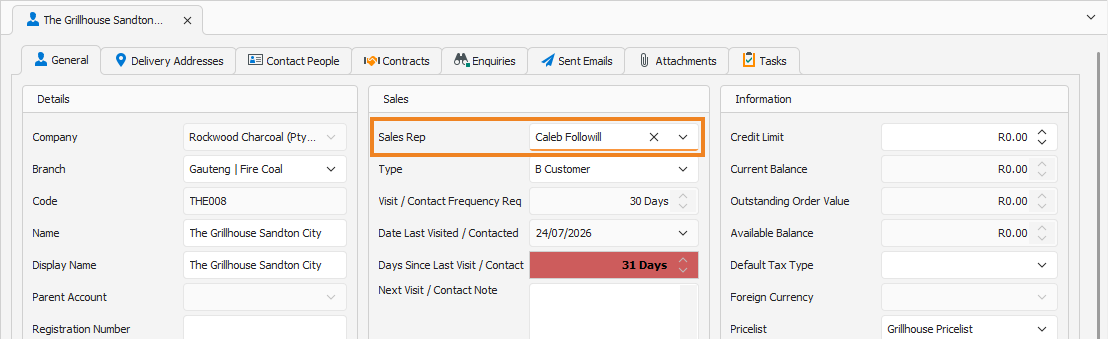
Select the default Sales Rep to use for this customer. This default can be overridden by an address-specific sales rep or the logged-in user's sales rep. Once done, click Save (Ctrl+S). This saves the customer. You can also press Ctrl+Enter to save and close the customer.
Sales Rep via Delivery Address
To set a customer's default sales rep based on their delivery address, navigate to the relevant customer. Open it by double-clicking it in the list, or by selecting it and pressing Enter.
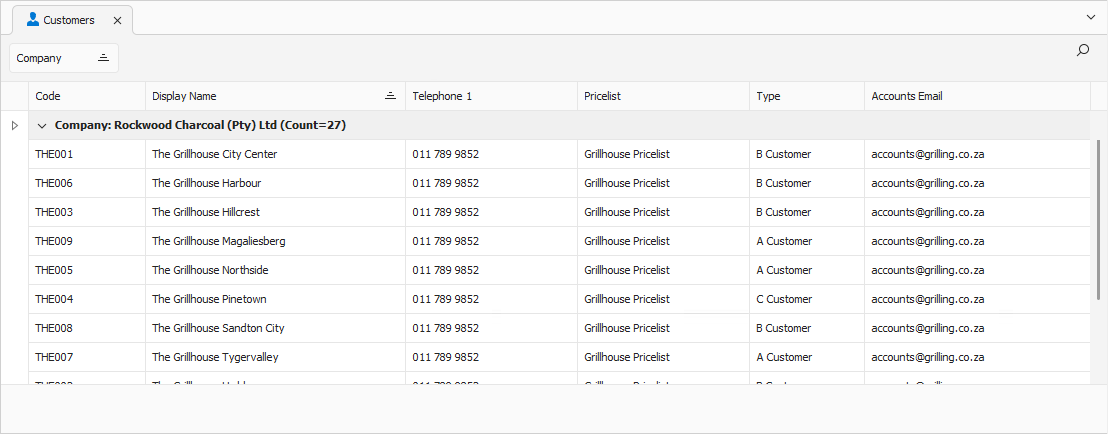
Opening the customer displays its General tab. Click the Delivery Addresses tab to continue.
Delivery Addresses Tab
The Delivery Addresses tab contains all the delivery addresses from a customer. Sales reps can be defaulted to a customer based on their delivery address.
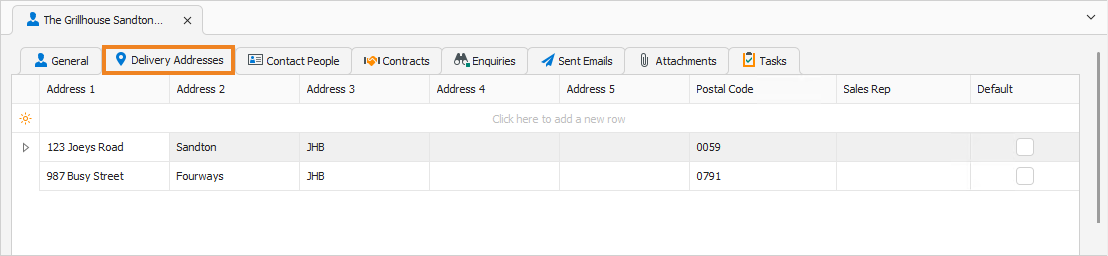
Select the default Sales Rep for each delivery address. This sales rep overrides the default sales rep configured above when a delivery address is selected on the customer's sales order. Once done, click Save (Ctrl+S). This saves the customer. You can also press Ctrl+Enter to save and close the customer.
Navigation › Administration › User Manager › User Settings
Sales Rep via User Settings
To set a customer's default sales rep via the user settings, navigate to the relevant user's settings. Open it by double-clicking it in the list, or by selecting it and pressing Enter.
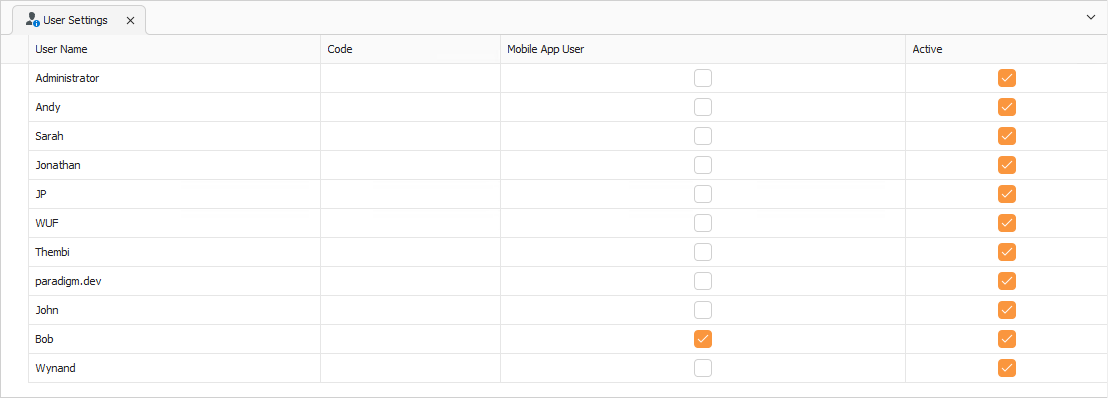
Opening the user settings displays its General tab. Click the Defaults tab to continue.
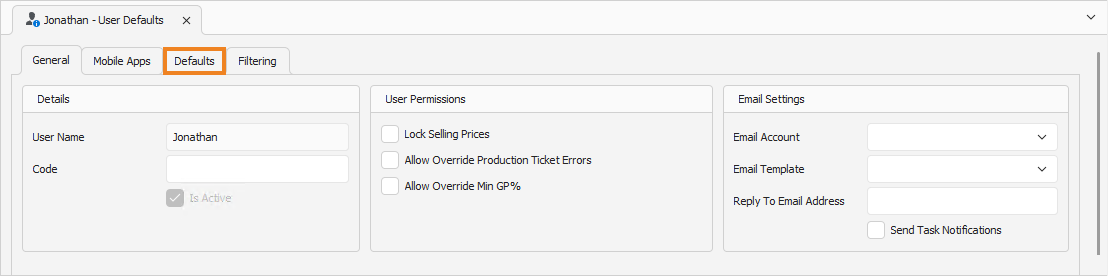
Defaults Tab
The Defaults tab displays the default settings for the user. These settings are used whenever the user is logged into the Paradigm system.
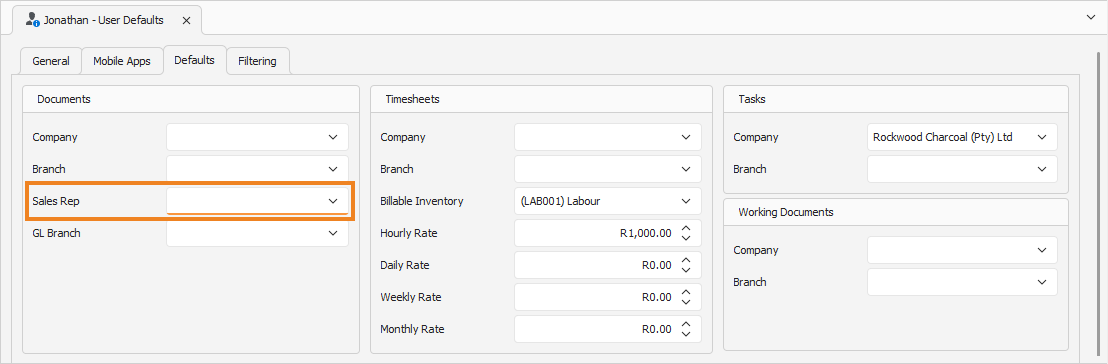
Select the user's default Sales Rep. This sales rep is used whenever this user creates a new sales order. This sales rep overrides the default sales rep configured above. Once done, click Save (Ctrl+S). This saves the customer. You can also press Ctrl+Enter to save and close the customer.