
Navigation › Inventory › Processing › Qty Adjustments
A quantity adjustment is a means to increase or decrease stock quantities in a warehouse.
Note: This article focuses on the simplest common use case for creating a quantity adjustment.
To add a new quantity adjustment, click New (Ctrl+N) on the toolbar. This opens a new blank Qty Adjustments screen on the General tab.
Note: Depending on your configuration, some fields are automatically populated when selections are made.
General Tab
On the General tab, you have to complete the quantity adjustment information, such as the branch and company information, and inventory item details.
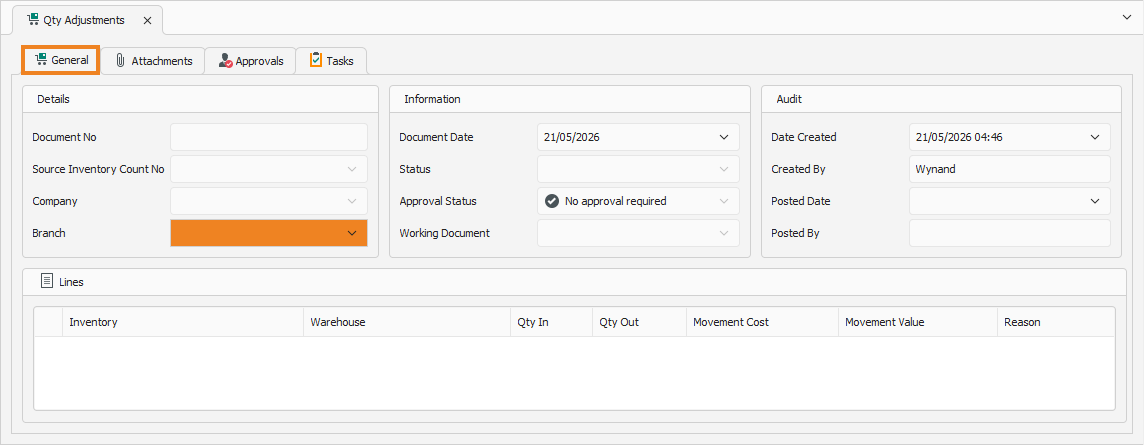
Details
- Select the Branch for which you are creating the quantity adjustment.
Information
- Document Date automatically populates to the current date. This date can be updated if required.
Once done, click Save (Ctrl+S). This saves the quantity adjustment and generates a new sequential document number in the Document No field.
Lines Section
In the Lines section, you have to add the quantity adjustment's affected inventory items details.
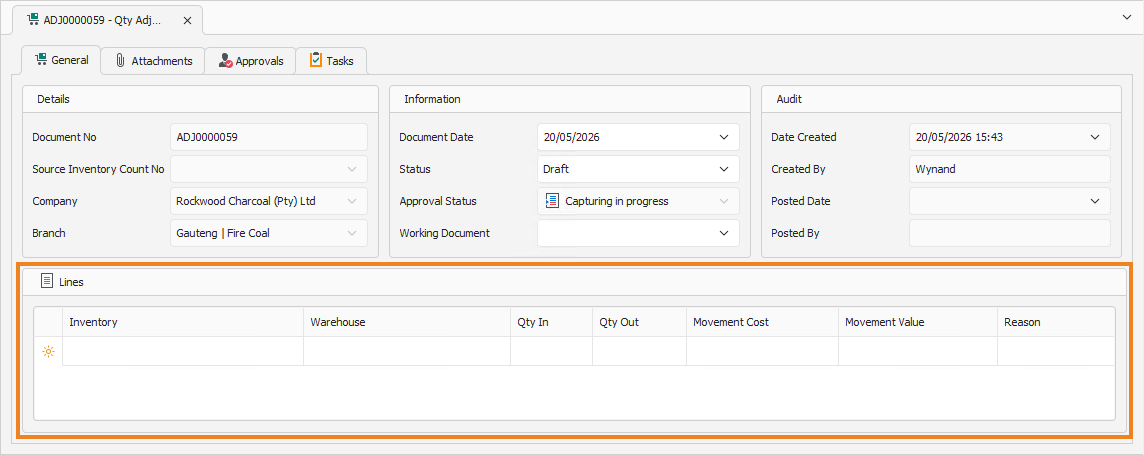
Note: Add a new line item to the list by clicking the empty cell under Inventory.
- Select the Inventory item to add to the quantity adjustment.
- Select the Warehouse where the item quantity is being adjusted.
- Enter the Qty In or Qty Out for the inventory item. Qty In increases the stock count, while Qty Out reduces it.
- The Movement Cost column displays the current average cost per inventory item added to the quantity adjustment.
- The Movement Value column displays the total value of the inventory quantity added for each line item in the quantity adjustment.
- Select the Reason why the quantity needs to be adjusted for every line item added.
Repeat the above steps until all required items are added to the quantity adjustment. Once done, click Save (Ctrl+S). This saves the quantity adjustment.
Request Approval
Before a quantity adjustment can be processed, approval needs to be requested. To request approval, click Request Approval on the toolbar.

A popup appears, asking you to confirm the action.
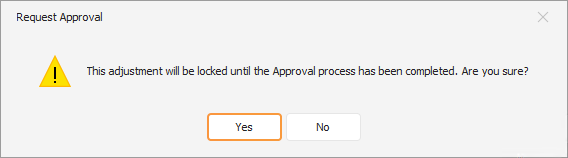
Click Yes to request the approval for this quantity adjustment. This locks the quantity adjustment for approval.