
Navigation › Production › Processing › Production Tickets
Note: This article covers the simplest common use case for progressing a production ticket through the Draft, Planned, Production, and Reconciling stages.
To process a production ticket, navigate to the relevant production ticket. Open it by double-clicking it in the list, or by selecting it and pressing Enter.
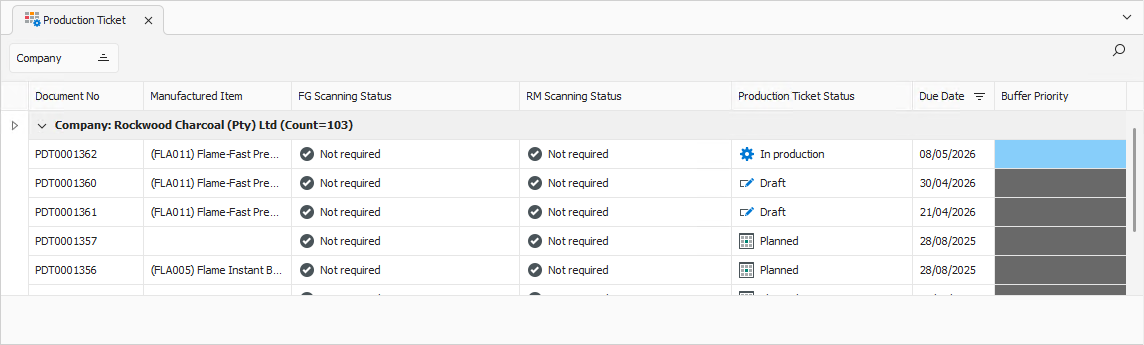
Opening the production ticket displays its General tab.
General Tab
Confirm that the information on the General tab is correct.
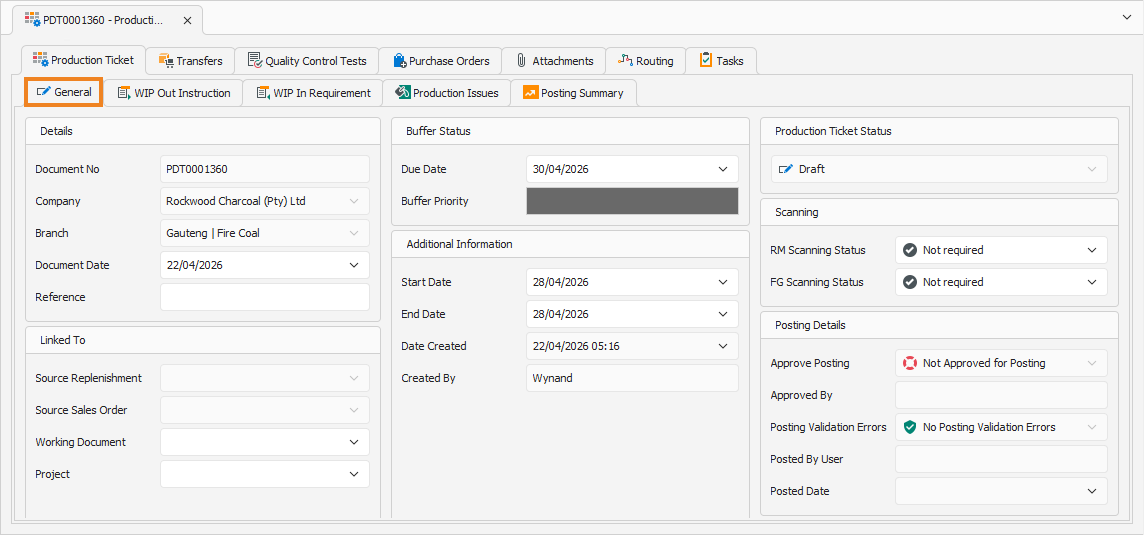
You can update some of the fields if required. Once done, click the WIP Out Instruction tab to continue.
WIP Out Instruction Tab
The WIP Out Instruction tab displays the production ticket's finished goods items' information, such as inventory items and their quantities.
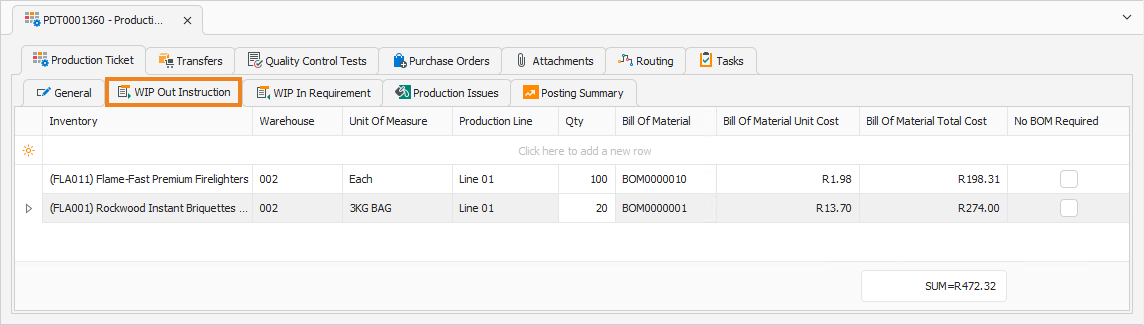
While the production ticket is in the Draft or Planned stages, you can update the line items if required. Once done, click the WIP In Requirement tab to continue.
WIP In Requirement Tab
The WIP In Requirement tab displays the raw materials and consumables required to fulfil the production run. It also includes the Unit Cost and Total Cost per inventory item, per finished good item.
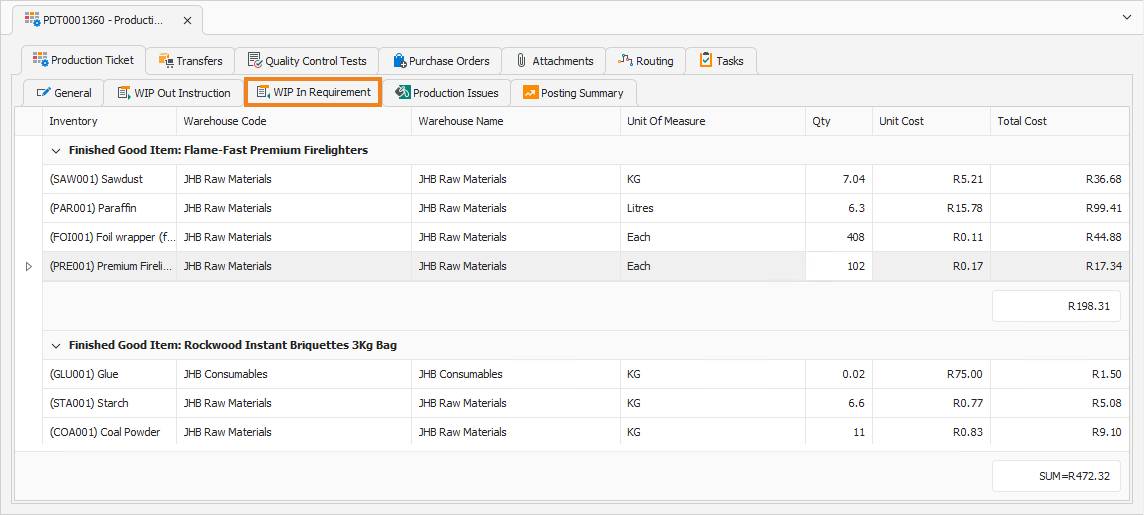
No line items on the WIP In Requirement tab can be updated. Confirm that these details are correct. Once done, you can change the production ticket's status. Click Update Ticket Status.

Note: The available statuses might depend on your user profile permissions and configuration.
A dropdown appears, displaying the available production stages you can move the ticket to. When a production ticket is first created, it is given the Draft status. Select the production stage to which you want to move the production ticket. The typical sequence in which production tickets are processed is:
- From Draft to Planned
- From Planned to In Production
- From In Production to Reconciling
In addition to the above, two other options are also available: Cancel and Reset.
- Cancel is used to cancel the production ticket. A cancelled production ticket can be reset if required.
- Reset is used to reset the production ticket. This returns the production ticket to Draft status and removes all information and changes applied to the Production Issues and Posting Summary tabs.
Select the production stage you want to move the ticket to. The different production stages enable updates to different tabs and information. For example, the Draft and Planned stages allow updates to the WIP Out Instruction tab, while the Production and Reconciling stages allow updates to the Production Issues tab. The Posting Summary tab is populated during the Reconciling stage.
Once your required status is selected, a popup appears, asking you to confirm the action.
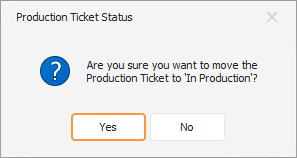
Click Yes to update the production ticket's status. This updates the production ticket's status.