
Navigation › Production › Processing › Assemblies
Note: This article focuses on the simplest common use case for generating a disassembly from a processed assembly.
To generate a disassembly from a processed assembly, navigate to the relevant assembly. Open it by double-clicking it in the list, or by selecting it and pressing Enter.
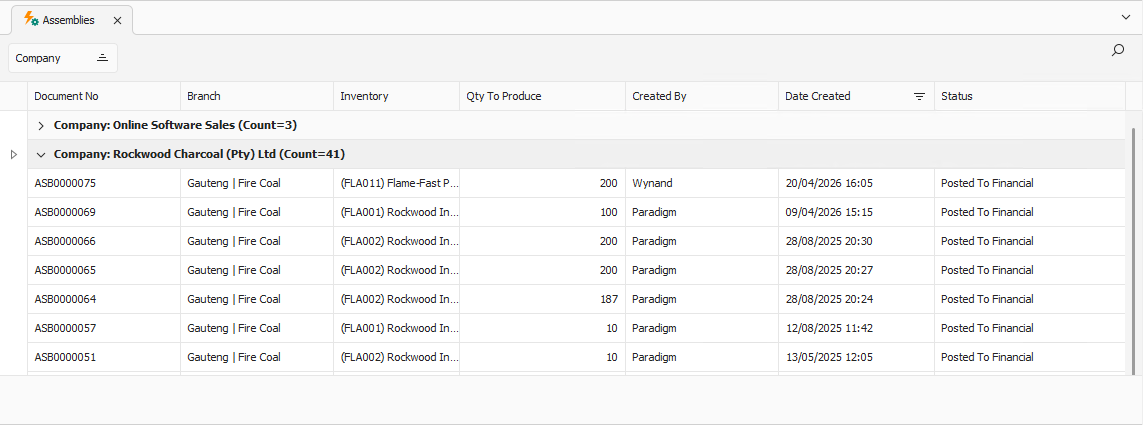
Opening the assembly displays its Assembly tab.
Assembly Tab
Confirm that the information on the Assembly tab is correct.
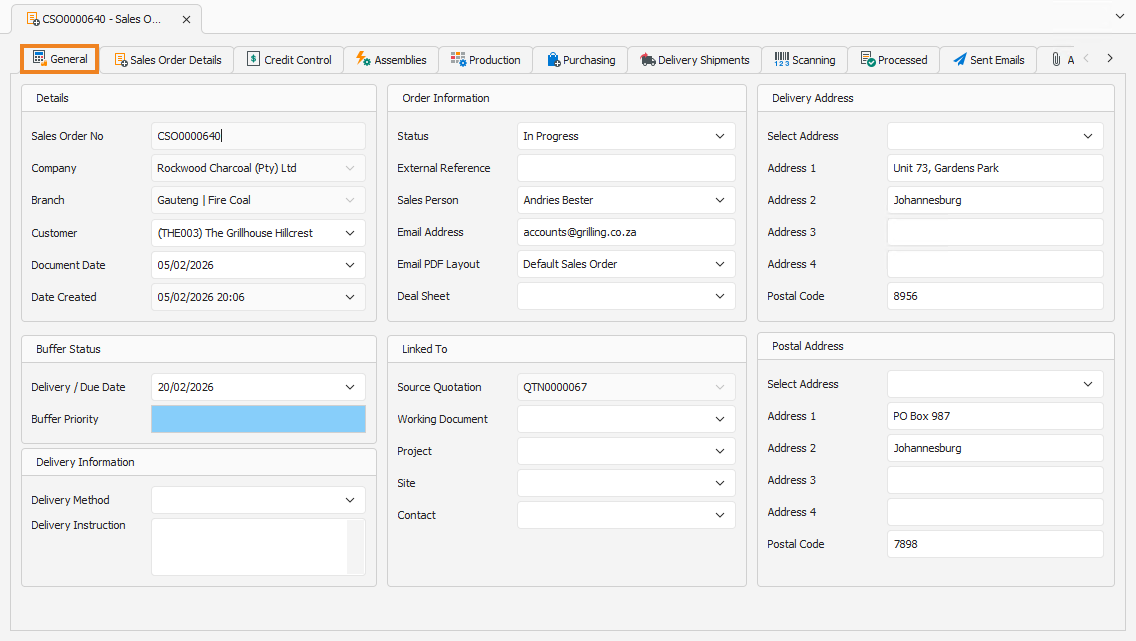
Click Create Disassembly.

This creates a new disassembly and displays its Disassembly tab.
Disassembly Tab
Confirm the information on the Disassembly tab.
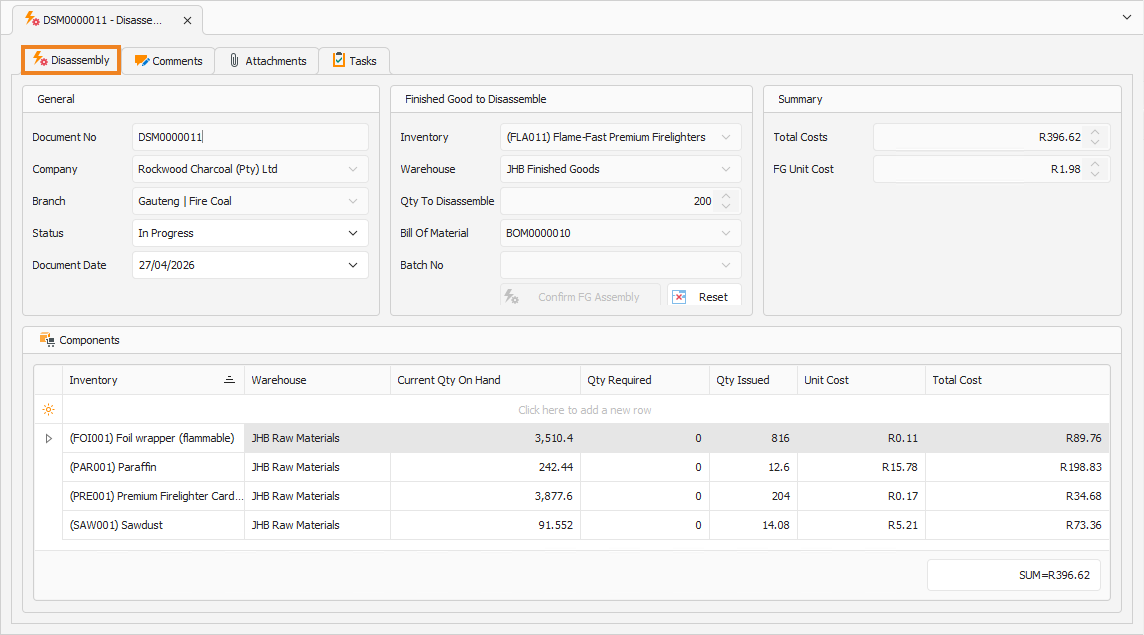
General
Confirm that the information on the General tab is correct.
Finished Good to Disassemble
- The Quantity To Disassemble field displays the total number of items included in the original assembly. To update this number, click Reset to clear the Components section.
- Click Confirm FG Assembly. This automatically populates the Components section with the raw materials and consumables that will be replaced into stock after the indicated number of finished goods items are disassembled. Click Reset to clear the Components section.
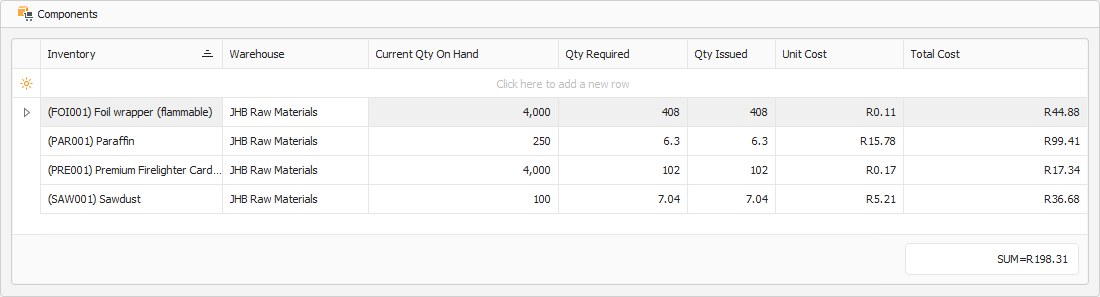
Components
The Components section displays the raw materials and consumables that will be replaced into stock after the indicated number of finished goods items are disassembled.
Summary
Once the Components are populated, the Summary section is updated with the disassembly cost.
- The Total Costs field displays the total cost of raw materials and consumables recovered by disassembling the indicated number of finished goods.
- The FG Unit Cost field displays the cost recovered by disassembling a single finished good item.
Once done, click Save (Ctrl+S). This saves the disassembly. You can also press Ctrl+Enter to save and close the disassembly.